Code editing
Edit v0's code output directly in the browser.
v0 includes a full-featured code editor with syntax highlighting, global search, diff views, split editing, and more.
Basic editing
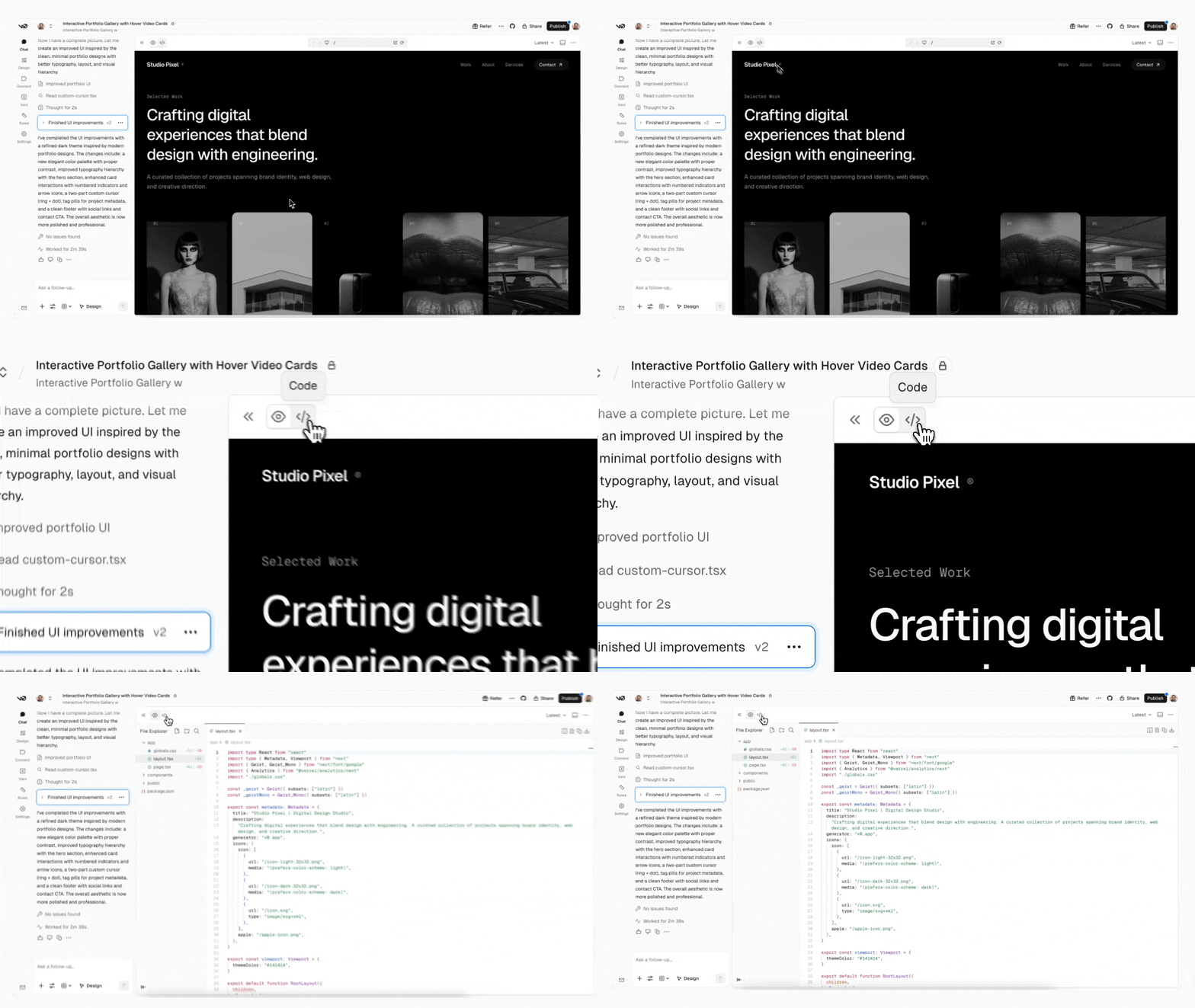
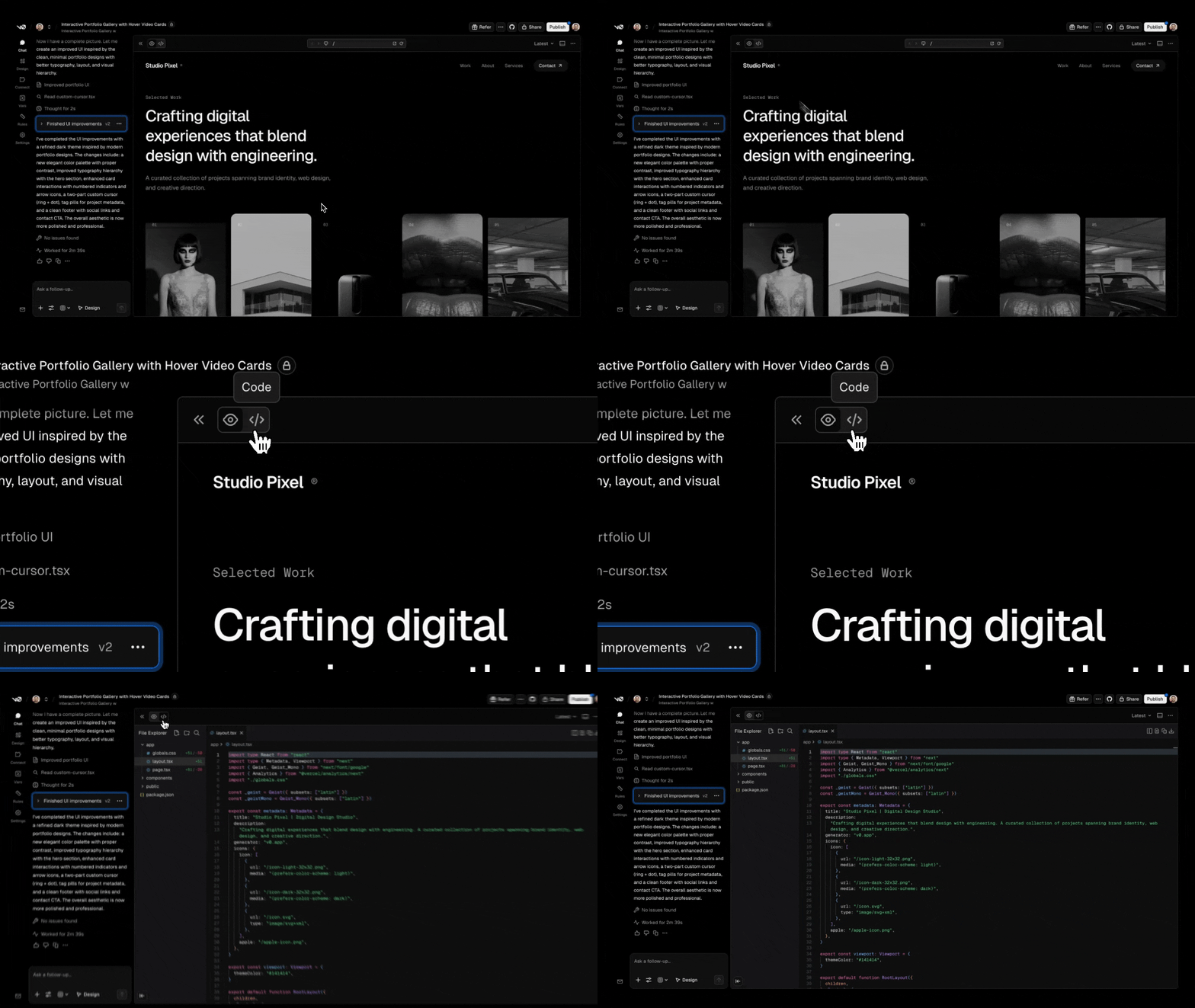
Click the Code tab next to the preview to access the editor. You can edit any file directly. When you make changes, an "Unsaved Changes" banner appears where you can save or reset. Press Cmd+S (Mac) or Ctrl+S (Windows/Linux) to save.
Editor features
- Syntax highlighting: Code is properly highlighted based on the file type
- Line numbers: Easily navigate through your code with line numbers
- Find and replace: Press
Cmd+F/Ctrl+Fto search within the current file - Global search: Press
Shift+Cmd+F/Shift+Ctrl+Fto search across all files. Filter results with "files to include" and "files to exclude" options - File Explorer: Press
Shift+Cmd+E/Shift+Ctrl+Eto toggle the file explorer panel
Diff view
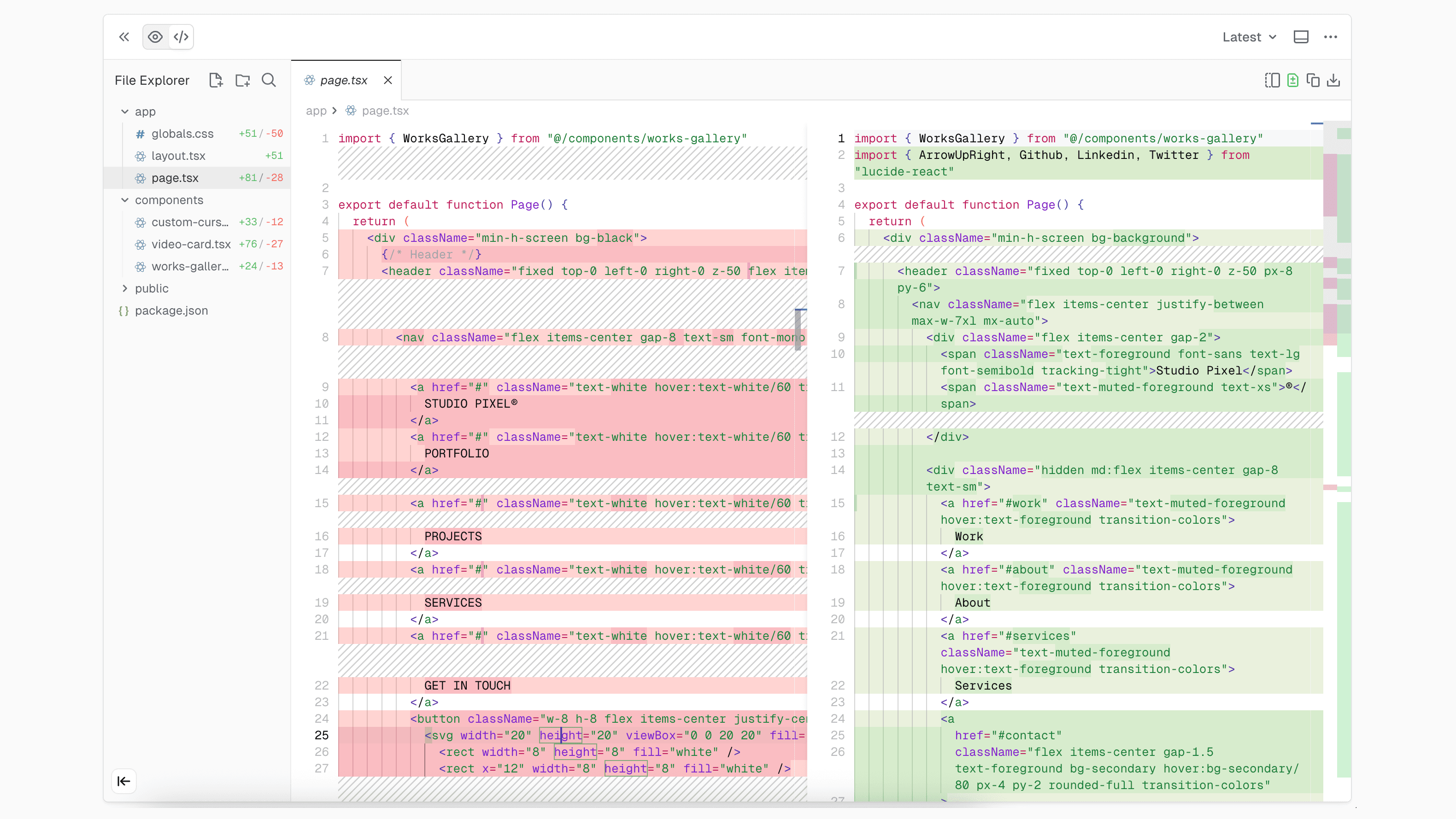
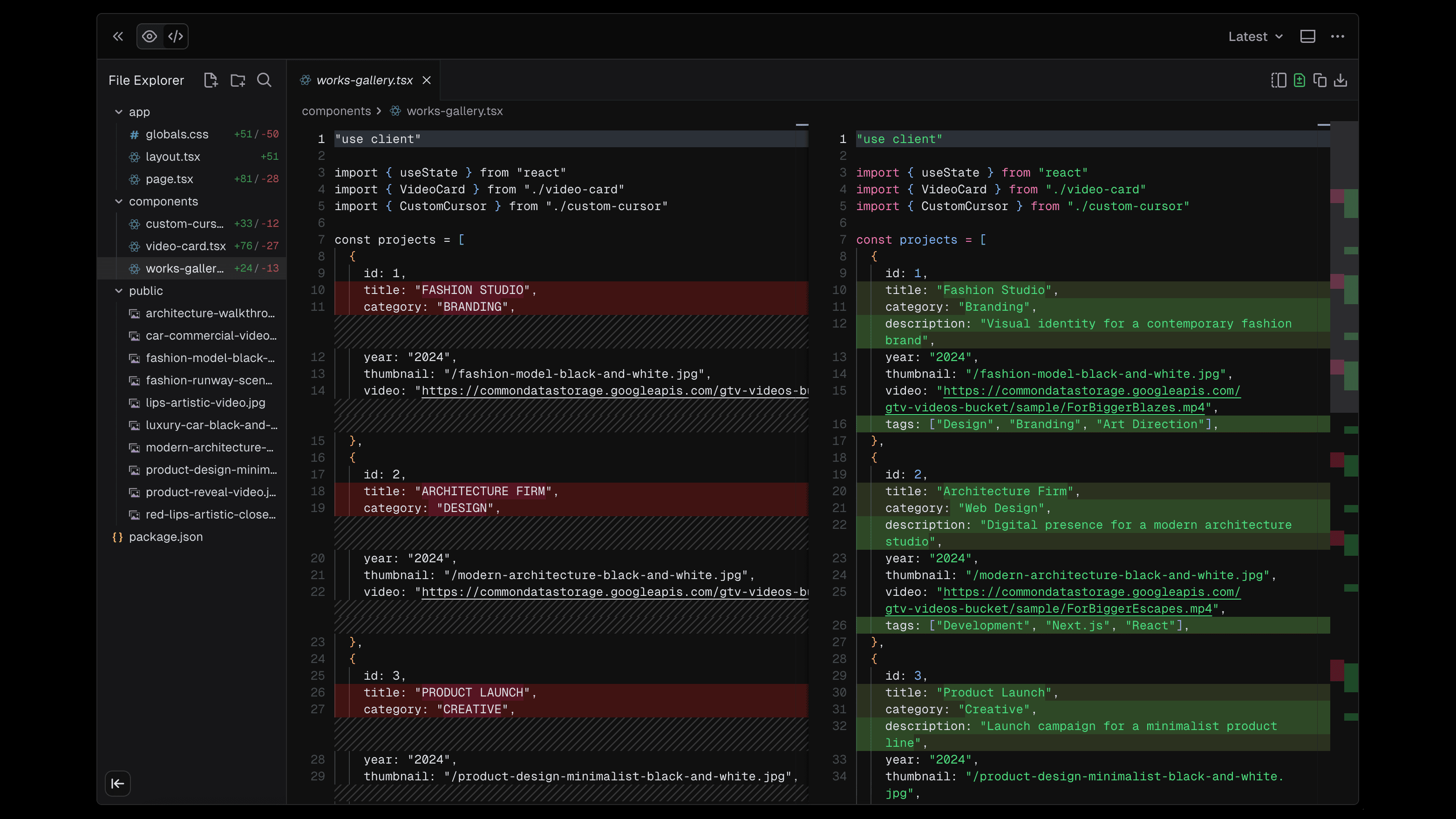
View v0's changes in the diff view. This helps you understand exactly what was modified in each generation. Click the Toggle Diff View button in the editor toolbar to enable it.
Split view
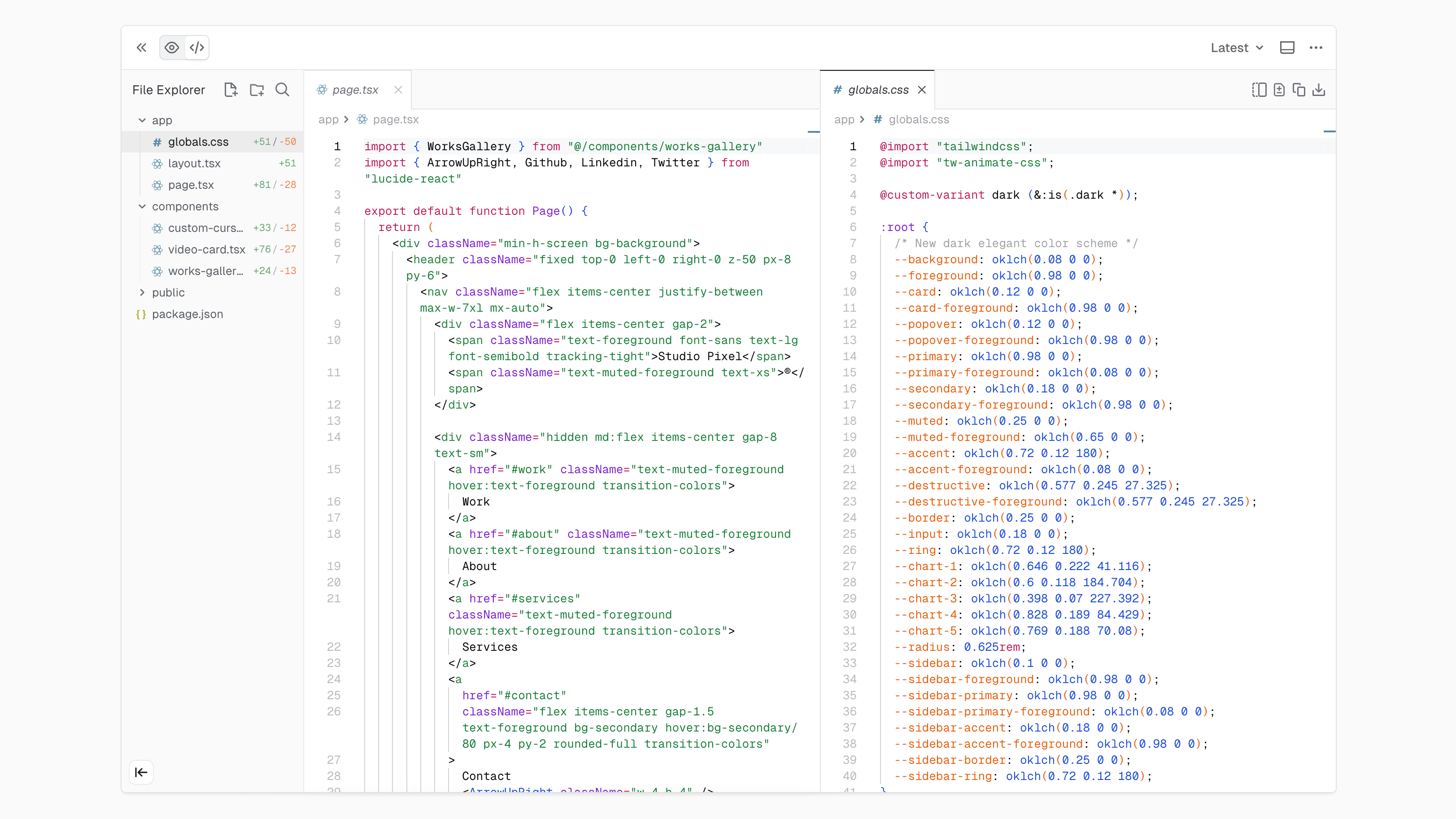
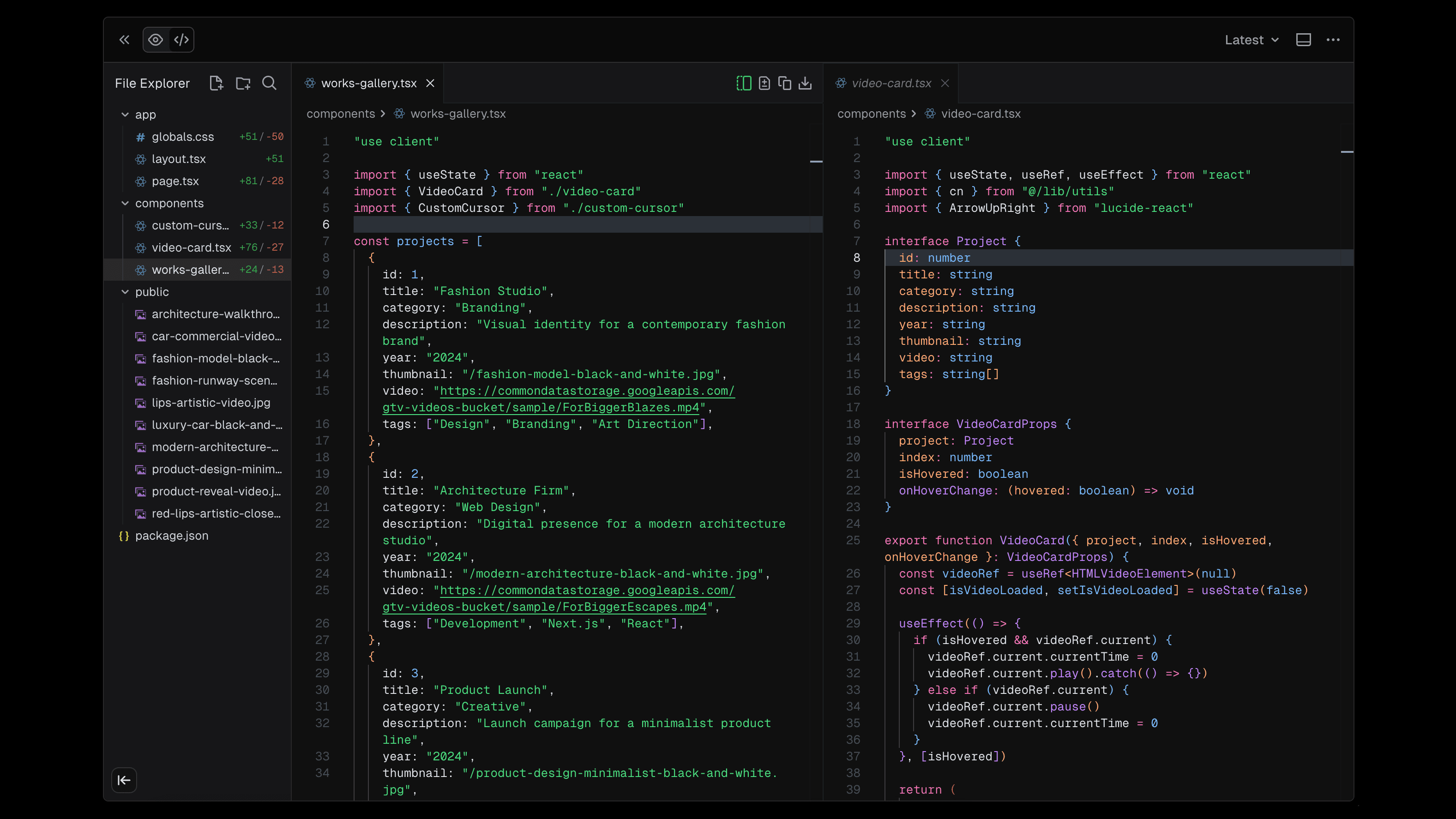
Edit files side-by-side with split view. Click the Split Layout button in the editor toolbar to open a second editor panel. This is useful when you want to view v0's changes in diff view while making additional edits in another panel, or when working on related files like a component and its styles.
File management
You can create, rename, and delete files directly in the editor:
- Create a file: Click the new file icon in the File Explorer header, or right-click in the file tree
- Create a folder: Click the new folder icon in the File Explorer header, or right-click in the file tree
- Rename a file: Right-click on a file and select "Rename"
- Delete a file: Right-click on a file and select "Delete"
Toolbar actions
The editor toolbar provides quick access to common actions:
- Copy File: Copy the current file's contents to your clipboard
- Download File: Download the current file to your computer
- Toggle Diff View: Show or hide the diff view for the current file
- Split Layout: Toggle split view to edit two files side-by-side
- Toggle Preview: Show or hide the live preview panel
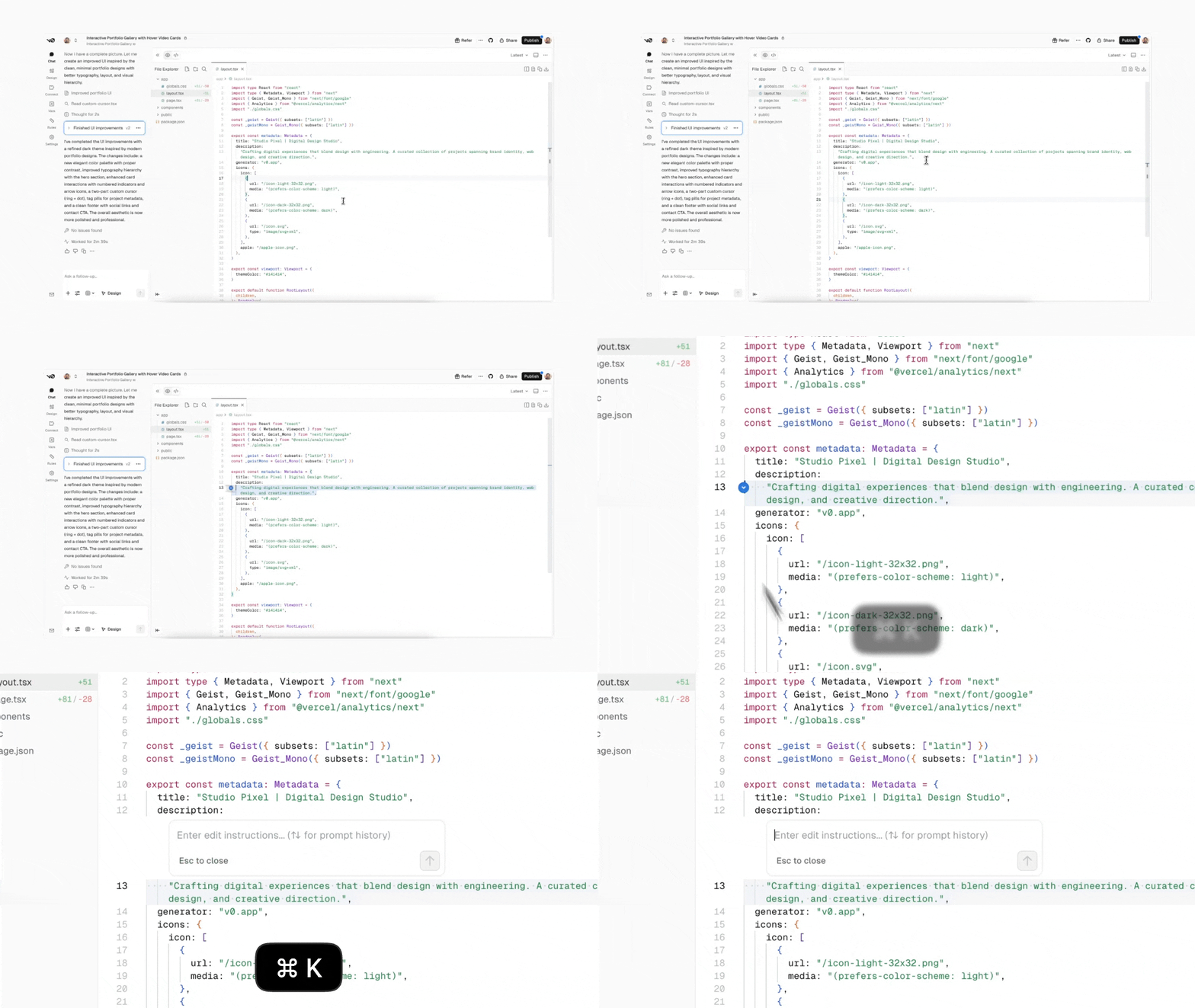
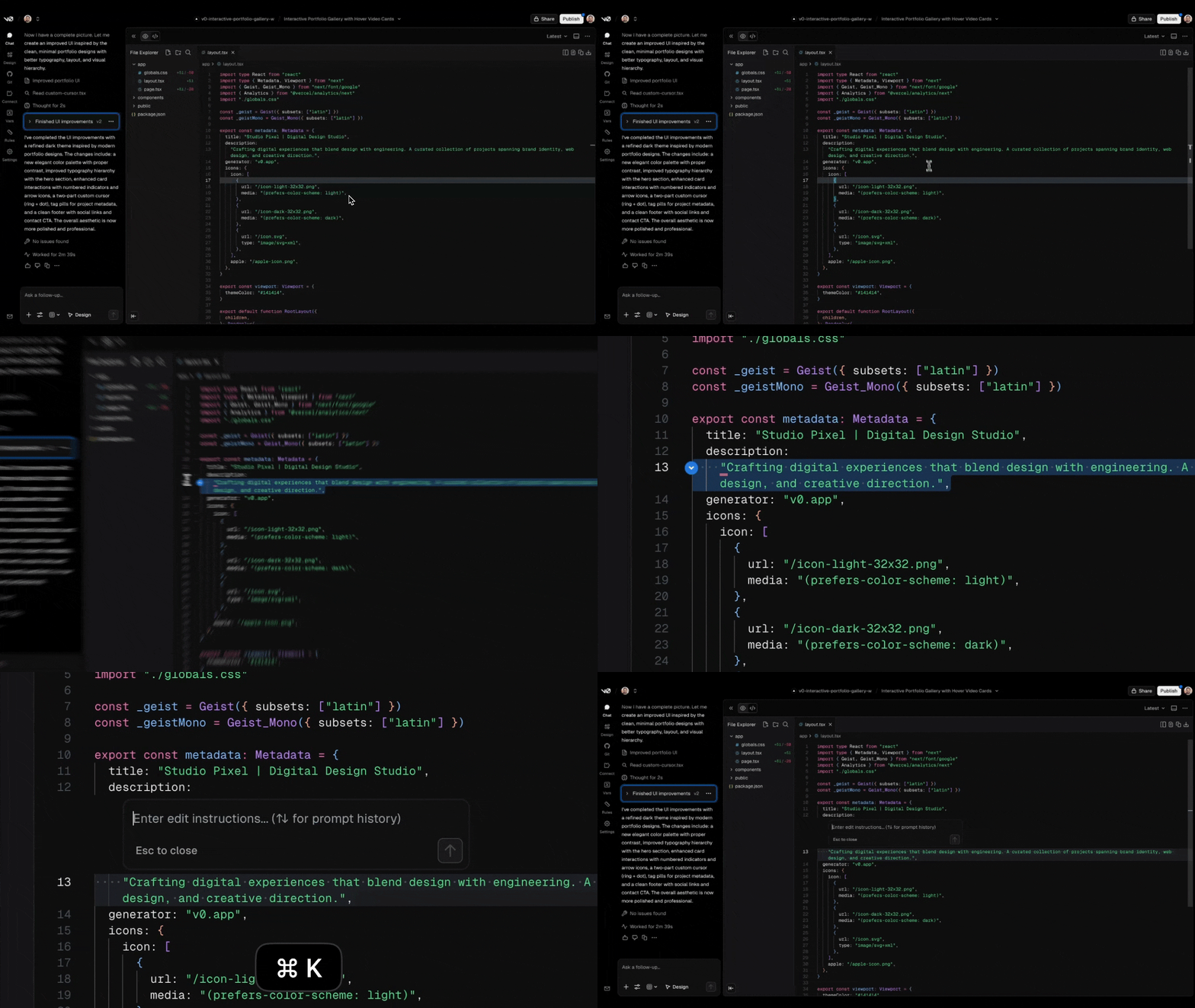
Inline code generation
You can target any code in the editor and ask v0 to make changes to it. Press Cmd+K (Mac) or Ctrl+K (Windows/Linux) to open the inline code generation prompt.